XGR API Calls (UI Guide)
This guide explains how to configure HTTP API calls in the XRC-137 Builder UI so they work 1:1 with the engine. It is written for end users of the page and focuses on what the UI provides: fields, placeholders, extract mapping, defaults, validation, and examples.
1) What an API Call is
An API Call fetches JSON from an external endpoint and writes selected values into your rule model using an extractMap.
- Works with JSON responses (object or array root)
- Uses placeholders like
[key]in URL, headers, and body - Extracts values from the response using expressions starting at
resp
What you see
 — APIs panel with “Add API Call” and one configured row.
2) Fields in the UI
| Field | Required | What it does |
|---|---|---|
| Name | yes | Identifier for this API call (must be unique in the rule). |
| Method | yes | GET, POST, PUT, PATCH |
| URL Template | yes | Absolute URL. You can insert placeholders like ...[symbol]... |
| Headers (JSON) | no | JSON object of HTTP headers; placeholders allowed |
| Body Template | no | Raw request body string; placeholders allowed (commonly JSON text) |
| Content Type | yes | Fixed to json |
| ExtractMap | yes | Defines what to extract from resp and how to type/default it |
| Sample JSON | no | UI-only helper for preview + extractMap generation |
What you see
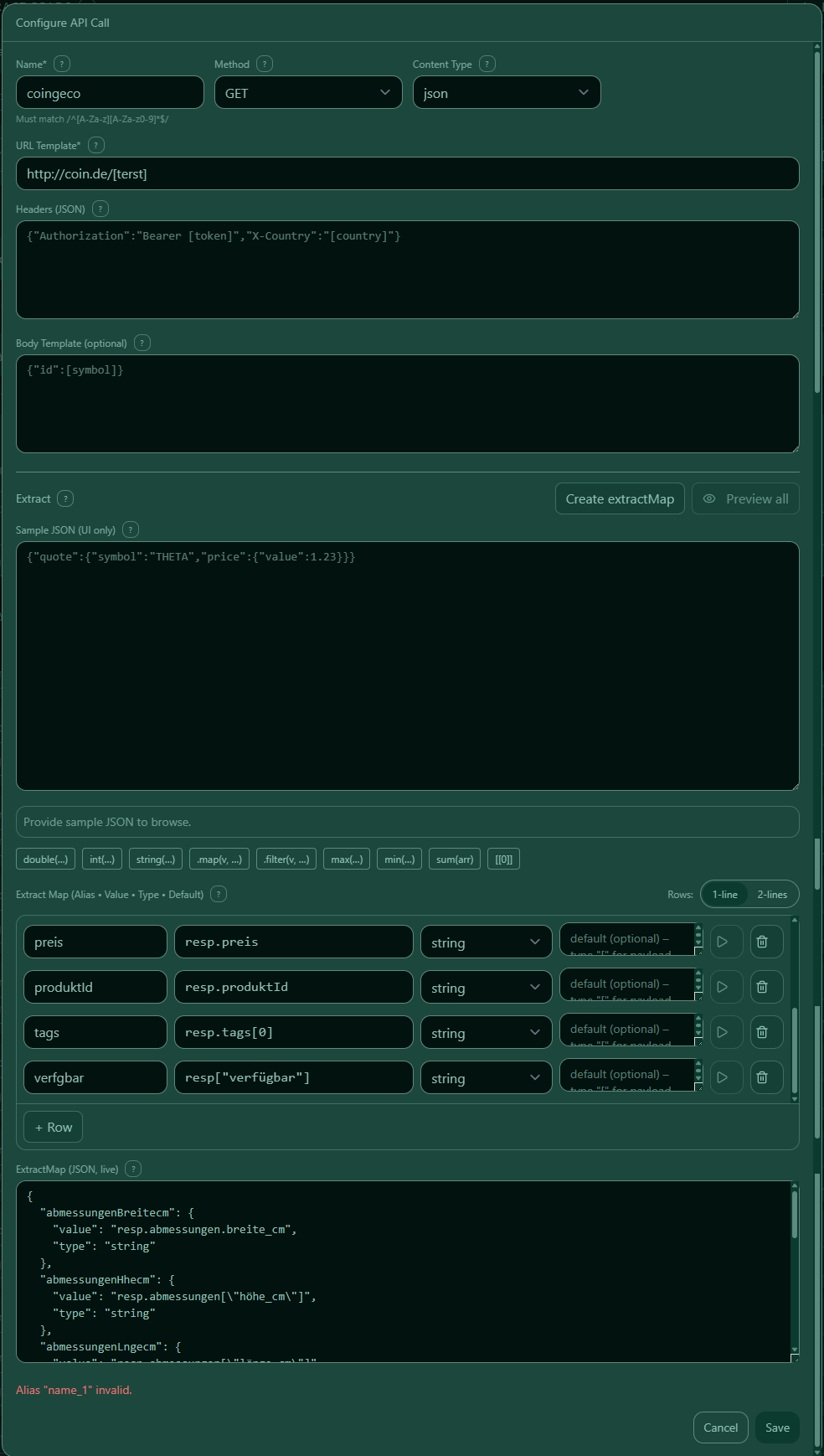 — “Edit API Call” modal.
3) Naming rules (API Name + Extract aliases)
API Call Name (this panel)
The API call Name must match:
- Regex:
/^[A-Za-z_][A-Za-z0-9_]*$/ - Max length: 128 characters
- Must be unique across all API calls in the same rule
Examples:
- ✅ Lookup, lookup_user, riskScore_1
- ❌ 1lookup, lookup-user, lookup user
Extract aliases (output fields)
Each extractMap entry uses an alias key (the output field name). Aliases must match:
- Regex:
/^[A-Za-z][A-Za-z0-9]*$/ - Max length: 128 characters
- No duplicates inside the same
extractMap
Examples:
- ✅ userName, productId, priceEur
- ❌ user_name, product-id, 1price
Tip: Keep aliases stable, because you will reference them later as
[alias].
4) Placeholders [key] in URL / Headers / Body
You can reference values from other parts of the rule using placeholders:
- Payload fields (from the Payload panel)
- Contract read outputs (
saveAskeys) - Earlier API outputs (saved extract aliases from previous API calls)
Examples:
- URL: https://api.example.com/q?symbol=[symbol]
- Header: {"Authorization":"Bearer [token]"}
- Body: {"id":"[contractTargetId]"}
What you see
 — Placeholder help (sources and examples).
5) ExtractMap (current structure)
extractMap is an object where each alias maps to a spec object:
"extractMap": {
  "someAlias": {
    "type": "string",
    "value": "resp.user.name",
    "default": "Unknown"
  }
}
Fields per extract entry
| Field | Required | Meaning |
|---|---|---|
type |
yes | Target type of the extracted value |
value |
yes | Expression that reads from resp |
default |
no | Used when the extraction fails / returns no usable value |
Notes
- value reads the JSON response object (root = resp).
- default is optional. If set, it is used when value cannot produce a usable result.
Supported type values (XRC-137 Payload Types)
extractMap.*.type uses the same registry as the Payload panel:
stringboolint64int256uint64doubledecimaltimestamp_msduration_msuuidaddressbytesbytes32uint256
What you see
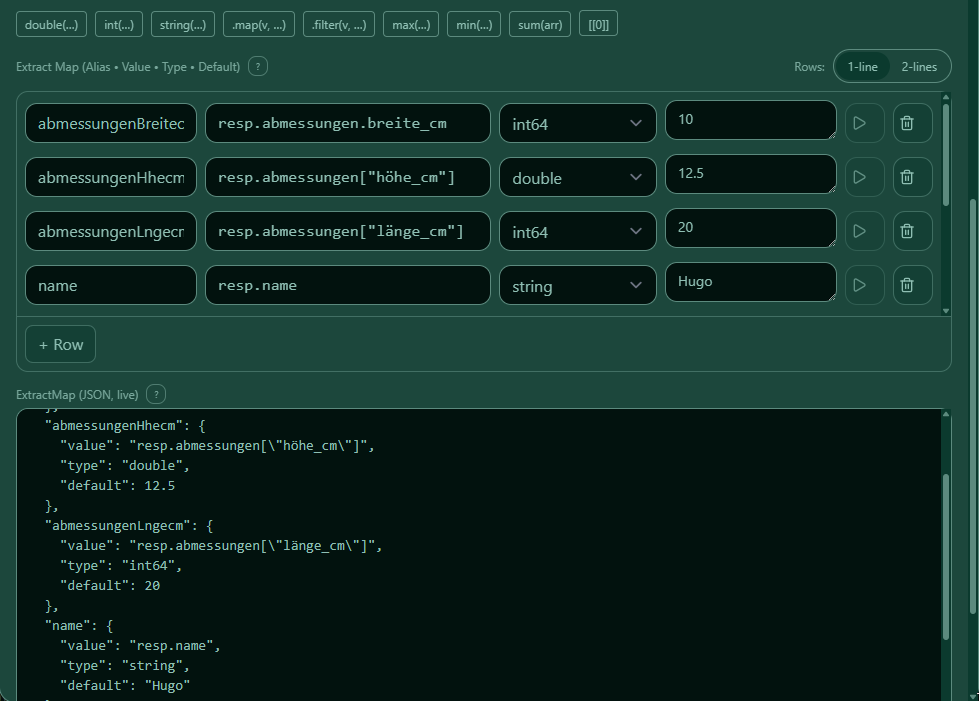 — ExtractMap editor (aliases + values + types + defaults).
6) Writing value expressions (reading from resp)
Expressions start at resp (the parsed JSON response). Use a CEL-like path syntax:
- Dot paths for simple keys:
resp.user.name - Array index via double brackets:
resp.tags[[0]] - Special keys (dashes, spaces, unicode, etc.) via escaped string key:
resp[[\"key-with-dash\"]]
Example:resp[[\"höhe_cm\"]]
Rule of thumb
- If a key matches /^[A-Za-z_][A-Za-z0-9_]*$/, you can use .key.
- Otherwise, use [[\"...\"]].
Tip: Use Sample JSON + JSON Tree and click nodes to insert the correct
resp...path automatically.
7) Generate an ExtractMap from sample JSON (UI feature)
The UI can generate a starter extractMap from a Sample JSON response:
- Paste a representative API response into Sample JSON
- Click Create extractMap
- The UI creates a first mapping (paths + suggested aliases)
- Review and adjust aliases, paths, types, and defaults
This is the fastest workflow to build correct paths without manually typing everything.
8) Preview & JSON Tree helpers (UI feature)
With valid Sample JSON, the modal provides:
- JSON Tree: click nodes to insert a
resp...path into the activevaluefield - Preview: test a single row or preview all extractions against Sample JSON
Use this to verify your paths before saving.
9) Validation (what the UI enforces)
- API Name matches
/^[A-Za-z_][A-Za-z0-9_]*$/and is unique - URL Template is not empty
- Method must be one of:
GET,POST,PUT,PATCH - Content Type is
json - ExtractMap rows:
- alias matches
/^[A-Za-z][A-Za-z0-9]*$/ typeis one of the XRC-137 payload typesvalueis not emptydefault(if set) must match the selectedtype
What you see
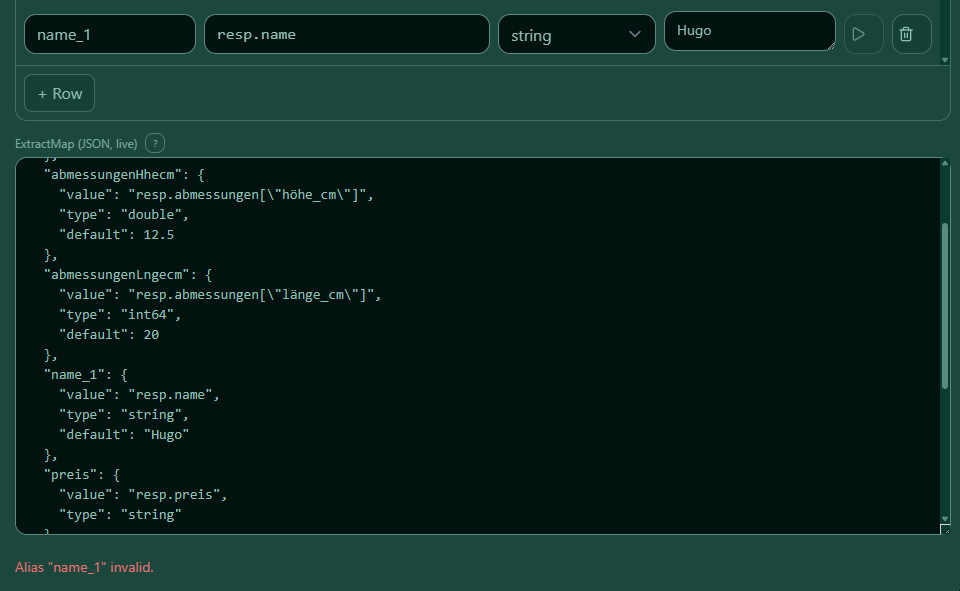 — Common validation errors.
10) Examples
10.1 GET with URL placeholder
{
  "apiCalls": [
    {
      "contentType": "json",
      "extractMap": {
        "abmessungenBreitecm": {
          "default": 10,
          "type": "int64",
          "value": "resp.abmessungen.breite_cm"
        },
        "abmessungenHhecm": {
          "default": 12.5,
          "type": "double",
          "value": "resp.abmessungen[[\"höhe_cm\"]]"
        },
        "abmessungenLngecm": {
          "default": 20,
          "type": "int64",
          "value": "resp.abmessungen[[\"länge_cm\"]]"
        },
        "name": {
          "default": "Hugo",
          "type": "string",
          "value": "resp.name"
        },
        "preis": {
          "type": "string",
          "value": "resp.preis"
        },
        "produktId": {
          "type": "string",
          "value": "resp.produktId"
        },
        "tags": {
          "type": "string",
          "value": "resp.tags[[0]]"
        },
        "verfgbar": {
          "type": "string",
          "value": "resp[[\"verfügbar\"]]"
        }
      },
      "method": "GET",
      "name": "coingeco",
      "urlTemplate": "http://coin.de/[terst]"
    }
  ],
  "onInvalid": {},
  "onValid": {},
  "payload": {
    "terst": {
      "type": "string"
    }
  }
}
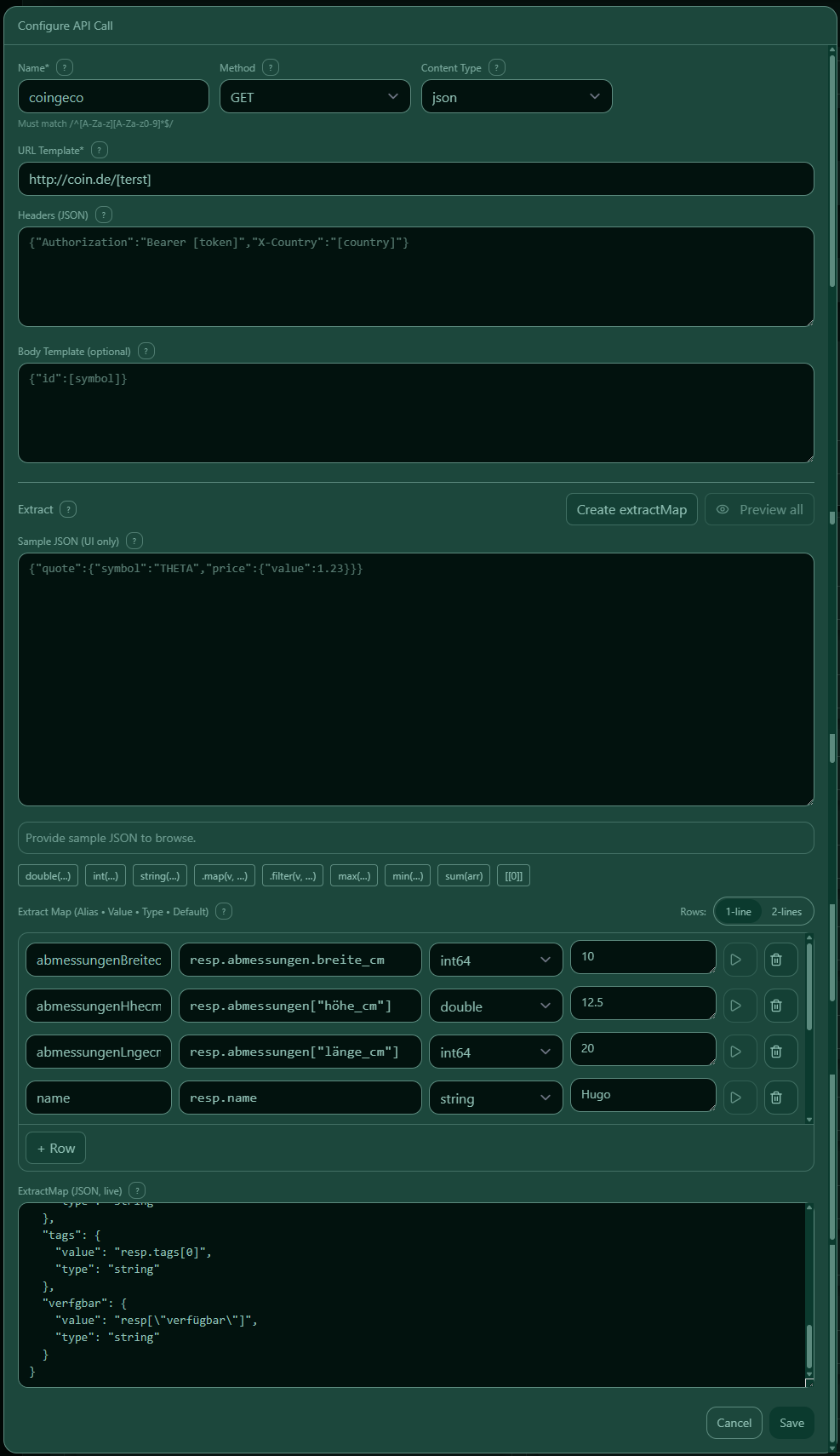 — Example card (GET, placeholders, defaults).
10.2 POST with JSON body template
{
  "apiCalls": [
    {
      "bodyTemplate": "{\"id\":\"[contractTargetId]\"}",
      "contentType": "json",
      "extractMap": {
        "userActive": {
          "type": "string",
          "value": "resp.user.active"
        },
        "userName": {
          "type": "string",
          "value": "resp.user.name"
        }
      },
      "headers": {
        "Content-Type": "application/json"
      },
      "method": "POST",
      "name": "Lookup",
      "urlTemplate": "https://api.example.com/lookup"
    }
  ]
}
What you see
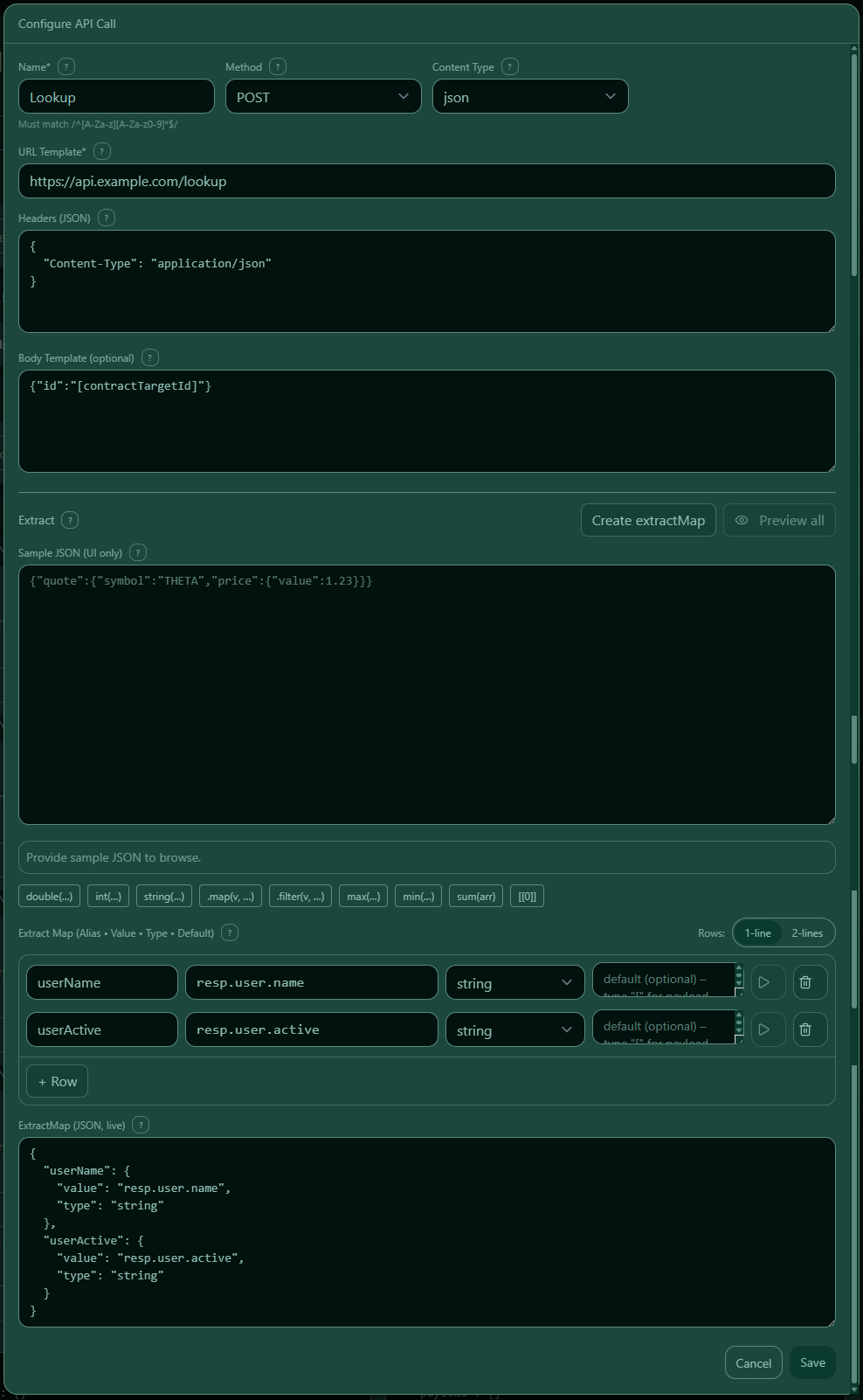 — Example card (POST with body + headers).
11) Tips & Troubleshooting
- If a placeholder cannot be resolved at runtime, ensure the key is produced by Payload, Contract Reads, or an earlier API. (The UI does not enforce existence for URL/body placeholders.)
- Use Sample JSON + Preview to validate your
valuepaths quickly. - Prefer stable response fields; avoid endpoints where the JSON shape changes frequently.
- If keys contain spaces or special characters, use bracket notation like
resp[[\"some key\"]].