XGR Output Payload (UI Guide)
This guide explains how to use the Output Payload panel in the XRC‑137 Builder to produce results in the onValid and onInvalid branches. It follows the same style as the other UI guides and is aligned 1:1 with the engine (parser & runtime).
1) What Output Payload does
Each branch (onValid / onInvalid) can write an output payload — i.e., a JSON object of key → value pairs — that becomes the step’s result. Values can reference earlier inputs via placeholders or compute values using expressions.
What you see
 — The Output Payload panel with rows and a “+ Field” button for onValid/onInvalid.
2) Add or edit an output field
Each row has two parts:
1) Name — the output field name (becomes a JSON key)
2) Value — a literal, a placeholder template, or an expression
Click a row to open the editor modal for the Value. Type [ to use autocomplete and insert placeholders from Payload, Contract Reads (their saveAs aliases), or API extracts.
What you see
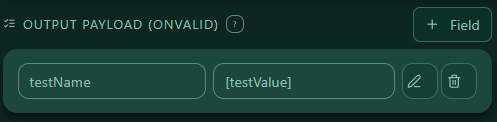 — A single output row with Name and Value; the modal shows helper text and suggestions for
 [ ... ].
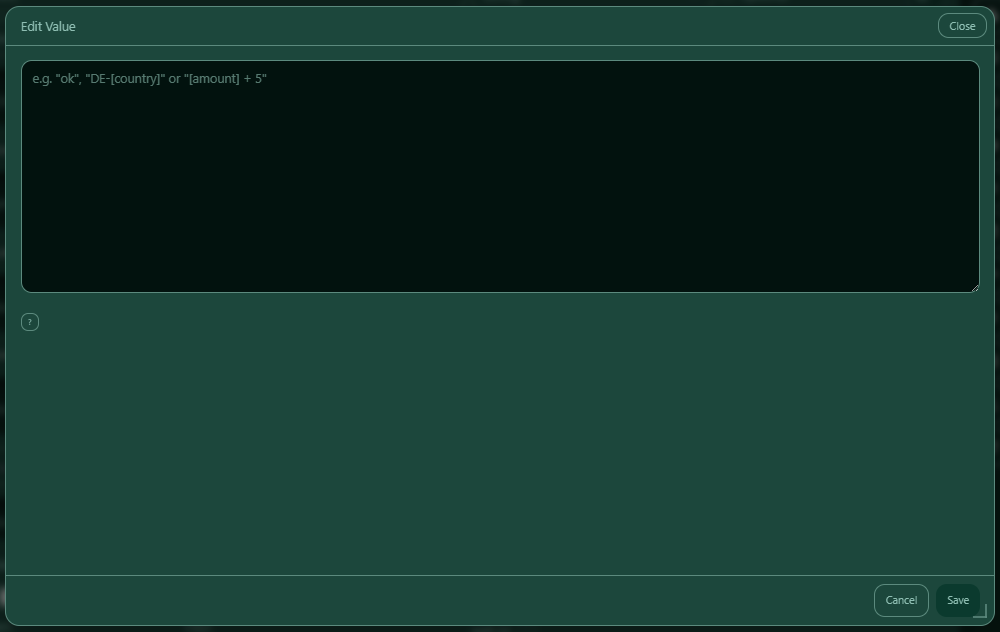 — A single output row with Name and Value; the modal shows helper text and suggestions for
 [ ... ].
3) Naming rules for output keys (case‑sensitive)
- Output keys are case‑sensitive and must be unique by exact spelling inside the same branch.
- Recommended pattern:
^[A-Za-z][A-Za-z0-9]*$ - Avoid square brackets in the key: a key like
"[Score]"is not evaluated as a placeholder; it will be written literally. - Hint behavior: If you typed
[to pick a suggestion for the key, the UI shows a small yellow info line under the row for 10s: “Picked from [ … ] suggestion — keys are stored without brackets (this is just a hint).”
Duplicates
If you add the same spelling twice, a note appears under the row: “duplicate output key — last wins” (the later row overwrites the earlier one when building the JSON).
What you see
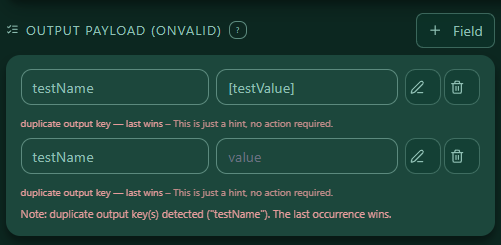 — A note below the row when duplicates exist; and a yellow info line when a key looks like
 [Name] or was picked via [.
4) Three ways to provide a Value
You can enter the right side (Value) in three forms:
1) Literal (no brackets)
- Examples: hello, 42, true, false
- Stored as-is.
2) Template with placeholder(s) (brackets, no operators)
- Example: "[amount]" or "DE-[country]"
- If it’s exactly "[name]", the engine copies the producer’s value.
- If it’s a string that mixes text and placeholders (no operators), the engine performs string substitution.
3) Expression (operators present)
- Example: "[amount] + 5", "[iban].startsWith(\"DE\")"
- Evaluated as CEL; result must be a scalar (string/number/boolean).
Rules of thumb
- Use quotes when you want strings; numbers/booleans as plain tokens.
- To show [ or ] inside a string, escape with [[ and ]].
What you see
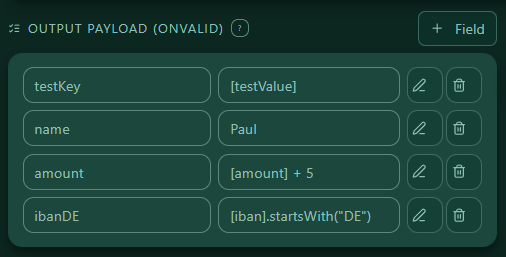 — Some mini cards: Literal, Template, Expression with short examples.
5) Placeholders [key] in Output Values
The same autocomplete sources as elsewhere apply:
- Payload keys (from the Payload panel)
- Contract Reads aliases (
saveAs) - API extracts aliases (from the API panel)
All placeholder names are case‑sensitive across the builder.
6) Branch options (timing & execution) — gas limit only
Each branch supports optional controls:
- waitMs — delay the branch execution by N milliseconds for the next process.
- execution — schedule a follow-up action.
- encryptLogs / logExpireDays (if enabled) — protect logs and set retention time.
Note: The Execution box supports gas limit. Enter a positive integer gas limit when needed. Execution contract address must be a proper 0x… (EIP‑55).
7) Examples
A) onValid — copy and compute
"onValid": {
  "payload": {
    "userId": "[userId]",
    "amountPlus5": "[amount] + 5",
    "label": "ok"
  },
  "waitMs": 0
}
B) onInvalid — explain why
"onInvalid": {
  "payload": {
    "reason": "rules not satisfied",
    "country": "[country]"
  }
}
C) Mixed templates
"onValid": {
  "payload": {
    "ibanPrefix": "DE-[iban]",
    "result": "[amount] >= 100"
  }
}
8) Validation (what the UI checks)
- Output keys must be non-empty strings (case‑sensitive uniqueness recommended).
- Output values must be string/number/boolean; placeholders must be known (produced earlier).
- Unknown placeholder in Value → error.
- Keys that look like
[Name]show a warning (not evaluated as placeholder). - If you picked a key via
[suggestion, a yellow info line appears for 10s (no action required). - Duplicated keys show a note (“last wins”).
9) Tips & Troubleshooting
- Unknown
[key]→ ensure the producer (Payload, Read, API) exists and comes before Output. - Type mismatch → numbers vs strings: quote strings, keep numbers plain.
- Expression fails → simplify or split logic in Rules; Output should stay scalar.
- Duplicate keys → keep only one; or let “last wins” intentionally and document it.
- Bracket in key → remove
[]from the key (only needed in values).
10) Next steps
With output fields defined, you can: - Route through onValid/onInvalid based on your Rules, - Chain into execution (if configured), - Inspect results in your logs (optionally encrypted).
Tabs
The editor has two tabs: onValid and onInvalid. You can define separate grants per branch.
Save behavior
Changes apply after Save in the editor. Rows are normalized: addresses lowercased, rights validated, negative values clamped to 0.
Tips
- If you encrypt the contract (Deploy/Update), consider encrypting your output logs as well.
- You can estimate storage cost via Cost (wallet + RPC required).
- The Owner grant follows the branch’s top‑level retention. Additional grants are independent and may expire earlier or later.