XGR Preview Panel (UI Guide)
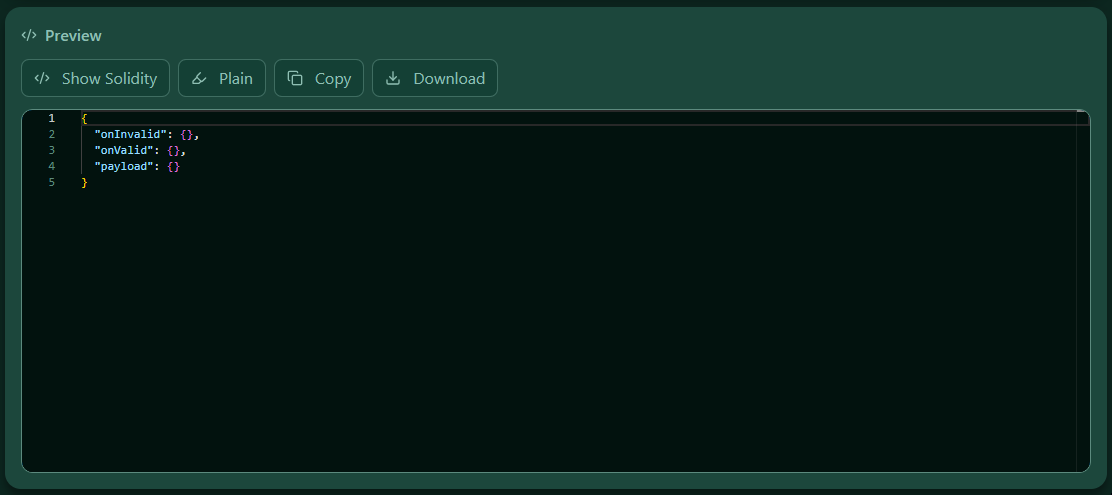
This guide explains the Preview panel in the XRC-137 Builder. It shows the code that the builder produces — live-synced — in two views: JSON (the exact rule JSON that will be saved/deployed) and Solidity (the wrapper contract preview).
1) What the Preview shows (live sync)
- The panel mirrors your builder state in real time.
- Switch between JSON and Solidity via Show JSON / Show Solidity.
- The code is read-only; edit content in the other panels (Payload, Reads, APIs, Rules, Outputs).
- The preview uses the same JSON object that is used by Compile / Deploy / Update.
Where this comes from
- JSON: built from your current model and rendered directly.
- Solidity: generated by the wrapper builder from that JSON.
- The panel only renders these strings with a code viewer.
2) Controls
Top-right you’ll find:
- Show JSON / Show Solidity – switch views.
- Highlight / Plain – toggle syntax highlighting.
- Copy – copy the current view to clipboard.
- Download – download the current view (JSON:
<name>.json, Solidity:<name>.sol).

3) JSON view
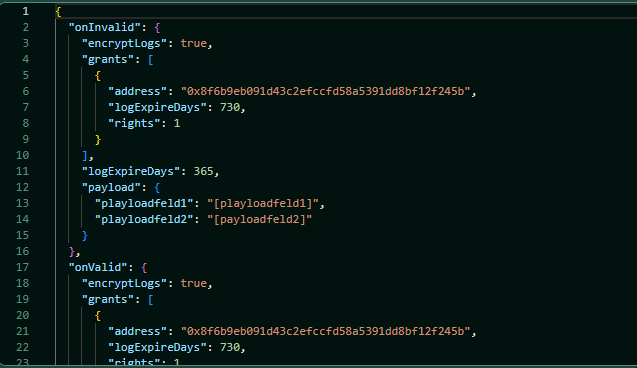
- Shows the exact JSON used by the engine.
- Formatting is stable (pretty/compact based on builder setting).
- Case sensitivity: All keys are case-sensitive (payload names, placeholders, outputs).
- Output keys: If a key looks like a placeholder (e.g.,
"[Score]"), it is written literally — keys are not evaluated.
4) Solidity view
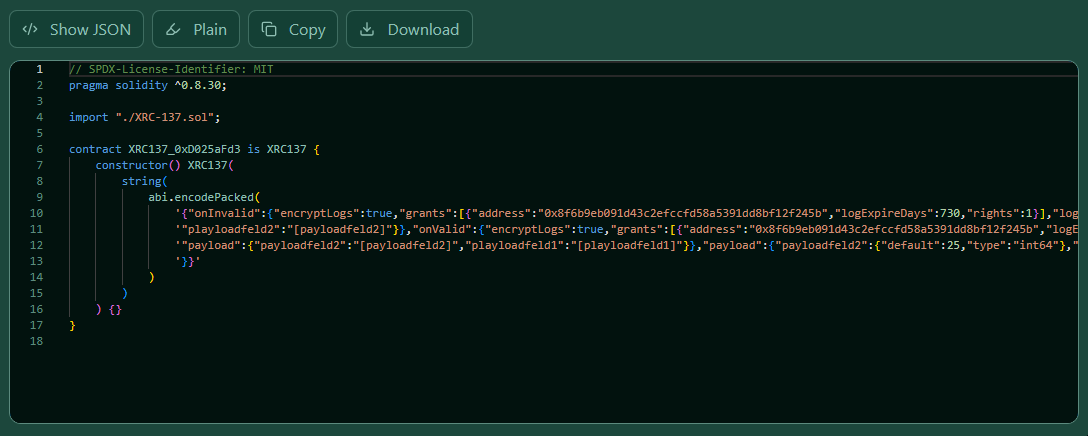
- Shows a generated Solidity wrapper around your rule JSON.
- Good for verifying that wrapper content updates with your changes.
Notes
- Syntax highlighting is enabled for Solidity (Monaco).
- Read-only — change content in the builder panels.
5) Syntax highlighting & wrapping
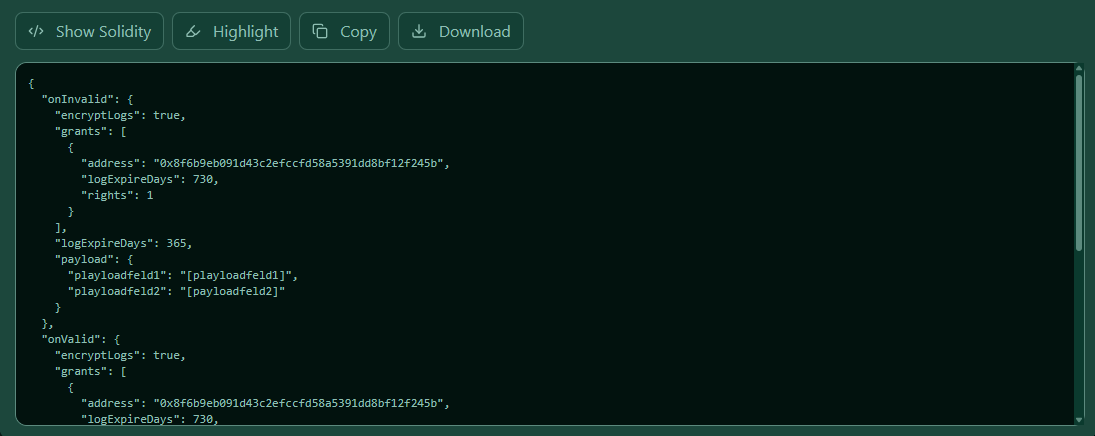
- Highlight uses the in-app editor (Monaco) in read-only.
- Plain uses a
<pre>view with horizontal scrolling. - Very long lines are kept unwrapped for fidelity (scroll horizontally).
6) Mobile & Desktop
- The viewer supports horizontal and vertical panning.
- On mobile, both directions are scrollable; the panel height is limited for comfortable swiping.
7) Copy & Download
- Copy: Copies the current view (JSON or Solidity) and briefly shows “Copied”.
- Download:
- JSON →
<RuleName>.json - Solidity →
<RuleName>.sol
8) Troubleshooting & Tips
- If the panel is empty, add Payload or Outputs (or any other panel content).
- If JSON shows validation errors in other panels, fix those first; the Preview mirrors your current (possibly invalid) state.
- Solidity preview depends on the wrapper generator; invalid JSON can lead to an empty or partial Solidity preview.
9) Example workflow
- Define Payload (case-sensitive names).
- Add Contract Reads/APIs (use
saveAs/aliases). - Create Rules.
- Provide Output Payload for onValid/onInvalid.
- Open Preview → check JSON & Solidity.
- Compile / Deploy / Update when the model validates cleanly.