XGR Read Key: How it works and how to use it
This guide explains what the Read Key is, how it is stored and verified, how to create/import/bind it, how to unlock it for decryptions, and why you sometimes see two wallet dialogs.
1) What is the Read Key?
- An asymmetric key pair for encrypting/decrypting private rule and log data.
- The public key is stored on-chain; the private key stays client-side and is stored password-encrypted in IndexedDB.
- For decryptions, the private key is temporarily unlocked in RAM (~5 minutes).
What you see
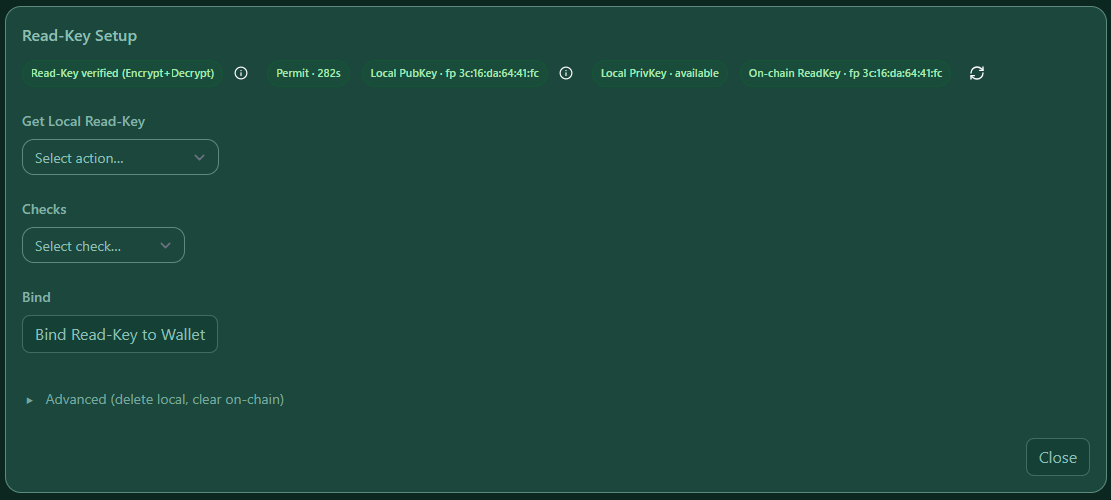 — Read Key panel with the seed (blurred), password fields, “I saved the seed”, and a Permit (save) badge with a countdown.
2) Create / Import / Bind / Manage
Create new seed (12 words): generate a new Read-Key seed phrase, set a password, and save it locally (encrypted).
Import seed: paste an existing BIP-39 seed phrase (12/24 words) and set a new password for this device.
Import pubkey (SEC1): paste a public key (33B compressed 0x02/0x03 or 65B uncompressed 0x04) to enable encryption-only on this device.
Bind Read-Key to Wallet: registers your local public key on-chain for the currently connected wallet (this is an on-chain transaction).
Delete local / Clear on-chain: advanced maintenance actions.
Permit (short-lived wallet signature)
- To Create new seed or Import seed, the app needs a short wallet signature (Permit) so saving is an explicit user action.
- While valid, the panel shows
Permit · <seconds>. If it expires, click Authorize now and sign again. - You can set the Permit TTL (e.g.
60s,5m,1h,1d, or plain seconds).
Note: Import pubkey is local-only and does not store a private key — no Permit is required, but this device stays encrypt-only (no decryption here).
Recommended: store the seed offline
In the Create/Import dialogs you can download an encrypted XGR Vault (.kdbx) file for KeePassXC. This file is generated locally in your browser and helps you store the Read-Key seed safely.
Why you sometimes see two dialogs
- First: the wallet may prompt connect/unlock account (account access).
- Second: the Permit signature request.
What you see
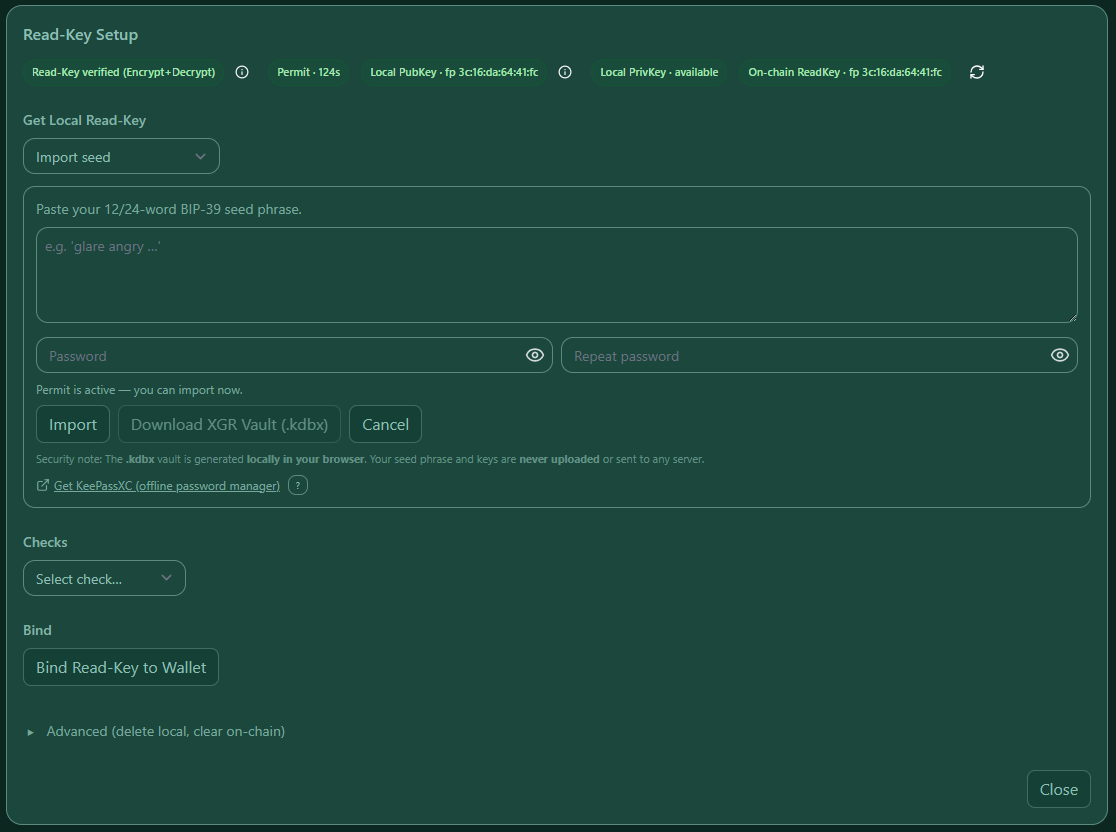 — Import via seed vs. public key; the Permit badge shows whether saving is currently authorized.
3) Status, Bind & Verification (on-chain vs. local)
The panel shows four important states:
- Local PubKey: a public key is stored on this device (IndexedDB).
- Local PrivKey: whether this device also has the wrapped private key:
- available → you can decrypt on this device
- missing (encrypt-only) → you can encrypt, but you cannot decrypt here (import the seed to restore)
- On-chain ReadKey: whether the connected wallet has a public key bound on-chain.
- Verified: local public key matches the on-chain key (fingerprint is identical).
Bind Read-Key to Wallet
After you have a local key, click Bind Read-Key to Wallet to register (or overwrite) the on-chain public key for your connected wallet.
The panel logs the transaction hash in the Result box and links to the explorer.
What you see
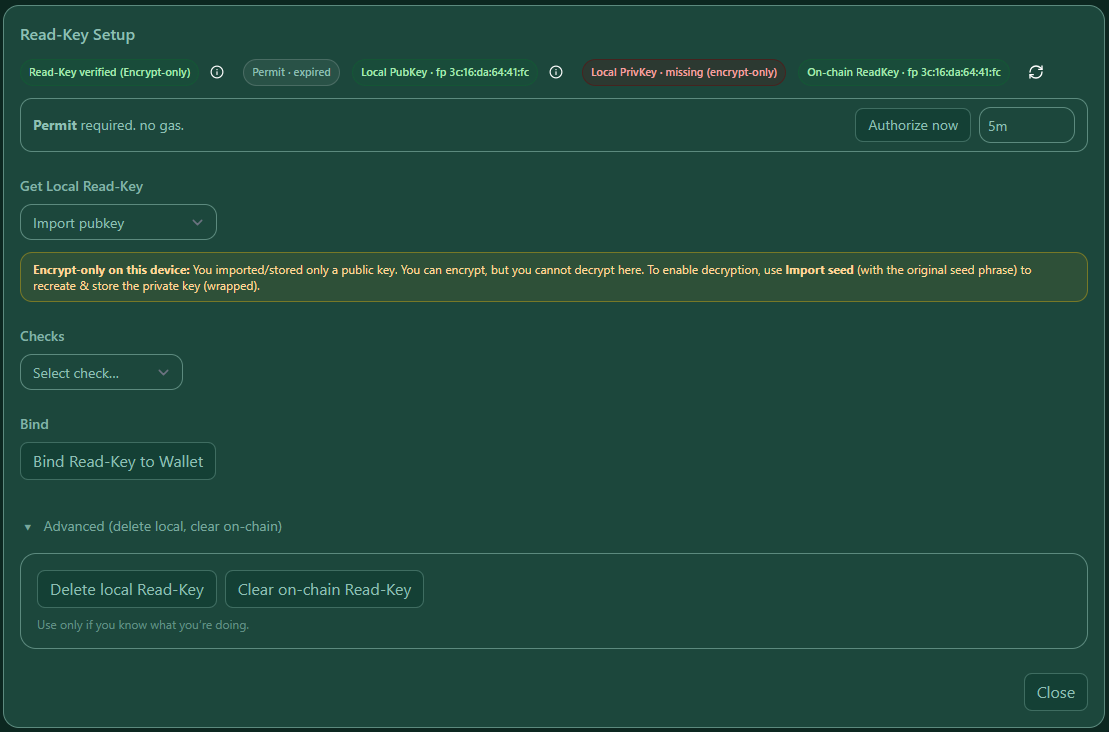 — Green Read Key verified badge. If the device has no private key, you may still see “verified (encrypt-only)”.
4) Decryption: Authorize & Unlock
Used across the app (Contract Manager “Load from chain”, XRC-137 Builder, XRC-729 Builder). Two steps:
1) Authorize (permit ~5 min.) — a wallet signature proves a human is actively present.
2) Unlock (RAM ~5 min.) — decrypts your private key temporarily in memory.
Both expire automatically; key changes invalidate any existing unlock.
What you see
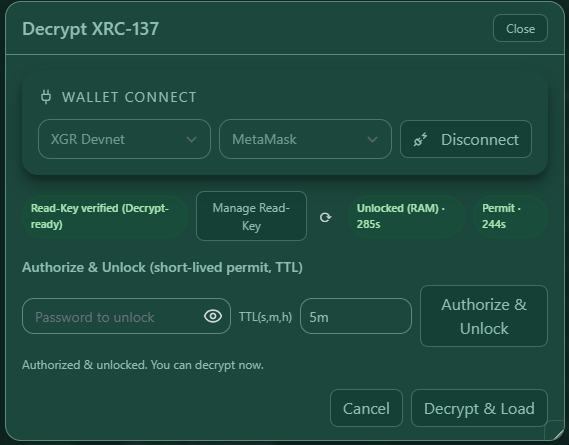 — Decrypt dialog with wallet selector, Read Key verified, a Permit badge + countdown, password field, and Authorize & Unlock.
5) Why Permit + RAM Unlock protect you
- Permit scopes authorization to account + contract + chain and expires quickly.
- RAM unlock minimizes exposure: encrypted “at rest”, wiped from RAM after ~5 minutes.
- Permit and RAM unlock can remain valid and be used across the page while they are active.
6) Troubleshooting (common)
- Not verified → connect the correct wallet/network or import the matching key.
- Permit expired → click Authorize now or run Authorize & Unlock again.
- No local wrapped key → open Manage Read Key and create/import one.
- Stale unlock → after key changes, enter the password again.
- RPC offline → switch chain or endpoint; reconnect the wallet.
- Import/Create does nothing → usually the Permit is missing/expired or the input is invalid.
- Check that Permit is active (
Permit · <seconds>). If expired, use Authorize now. - Check that the seed is a valid BIP-39 mnemonic and that the passwords match. Errors are shown inline.
7) Security hygiene in the panel (UX details)
- Password inputs are cleared on close/cancel or when switching flows (Create/Import).
- Browser autofill is disabled for password fields to avoid accidental reuse.
- Changing or re-importing the Read Key invalidates all in-RAM unlocks across tabs.