XGR OPS — Manage Execution: Executors + Rule Coverage (XRC-137 / XRC-729)
This guide explains how to use OPS → Manage Execution to:
- manage executors on XRC-137 and XRC-729 contracts (add / remove)
- optionally enable Wildcard execution (All *) on a contract (allows any address to execute)
- run RULE EXECUTOR COVERAGE (XRC-729) to verify that a selected executor can execute all rule contracts referenced by an XRC-729 orchestration — and fix missing access where possible
It is written for end users and focuses on what the UI provides: loading data, interpreting statuses, and applying fixes.
1) What this page does
An XRC-729 orchestration (OSTC) can reference one or many rule contracts (commonly XRC-137 contracts). For an orchestration to work end-to-end, the orchestrator needs a valid execution path on each referenced rule contract.
On OPS → Manage Execution you can:
- Manage the executor list of a loaded contract (XRC-137 or XRC-729) by adding or removing executor addresses.
- Optionally enable/disable Wildcard execution (All *) on the loaded contract.
- (Only for XRC-729) run Rule Executor Coverage to answer:
“Does the selected executor have execution rights on every referenced rule contract?”
Coverage supports three ways an executor can have access on a rule contract:
- Explicit access (has executor): the address exists inside the rule contract’s
executors[]list. - Implicit owner access (owner implicit): if the selected address equals the rule contract owner, it can execute even if it is not listed in
executors[]. - Wildcard execution (All *): if the rule contract contains the wildcard executor, it is considered open — any address can execute.
Wildcard execution (All *)
Manage Execution also supports a Wildcard executor:
- Wildcard executor address:
0x0000000000000000000000000000000000000000 - If this address is present in a contract’s executor list, the contract is considered open: any address can execute on that contract.
Use this only if you intentionally want to open execution temporarily. You can later remove the wildcard to restore a restricted executor list.
2) Where to find it
- Go to OPS → Manage Execution.
- Connect your wallet (Step 1).
- Load a contract (Step 2):
- XRC-729 if you want to run Rule Executor Coverage.
- XRC-137 if you only want to manage executors on a specific rule contract.
- If you loaded an XRC-729, the section RULE EXECUTOR COVERAGE (XRC-729) appears below the executor list.
What you see
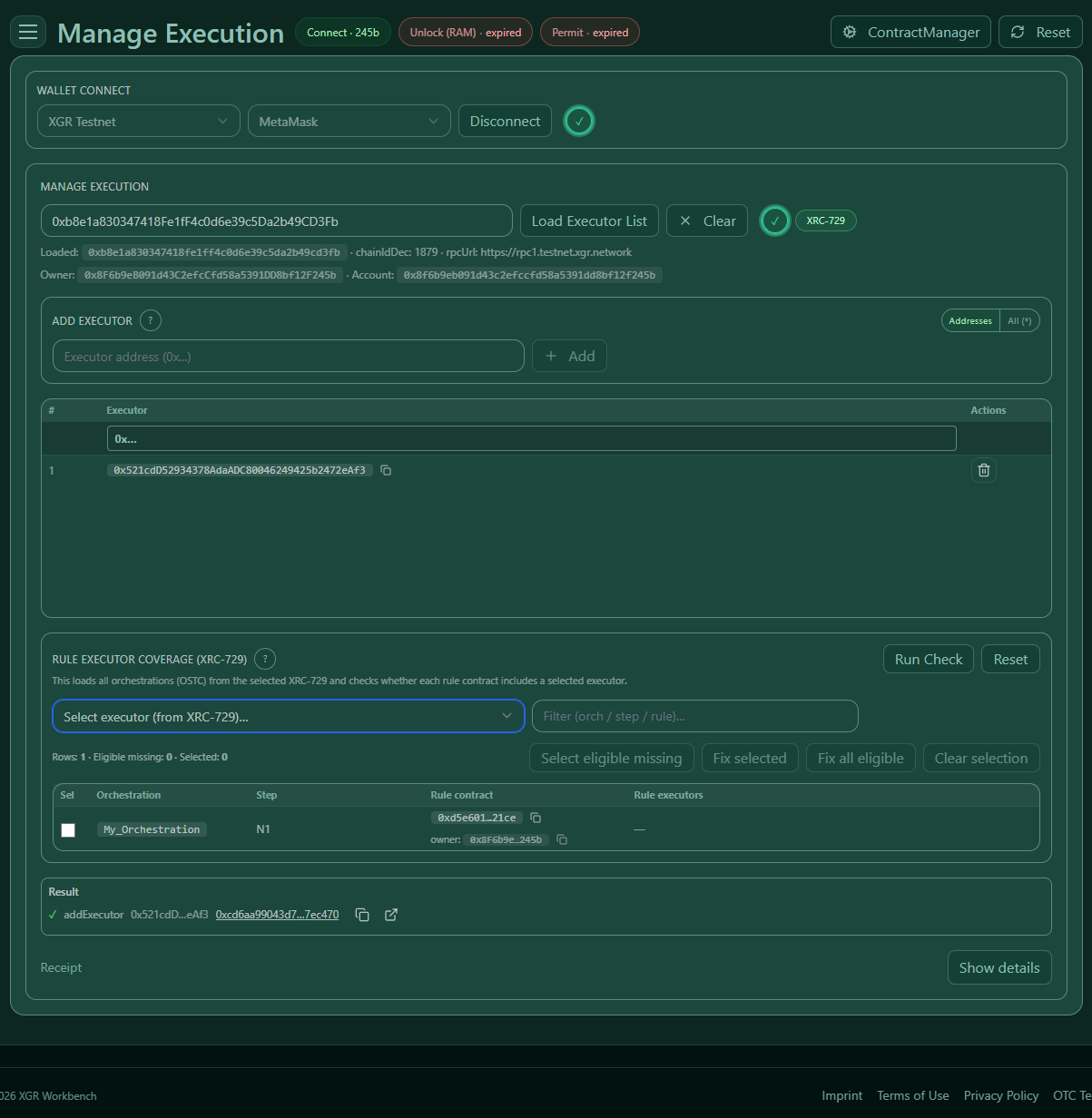 — Rule coverage section with “Run Check”, executor dropdown, and a result table.
3) Run a coverage check (XRC-729 only)
Step A — Click “Run Check”
Run Check does the following:
- Loads all OSTC IDs from the selected XRC-729.
- Fetches each OSTC JSON.
- Extracts any
rule: 0x...references inside the OSTC structure. - Builds a unique list of referenced rule contract addresses.
- For each unique rule contract, reads:
- executor list
- owner
Depending on the amount of OSTCs and rule contracts, this can take a moment.
4) Select an executor
Use the dropdown “Select executor (from XRC-729)…” to choose an executor address.
Once selected:
- Each table row turns green or red depending on access.
- If a rule contract is Wildcard-open (All *), it will always show green (because any address can execute).
- The panel calculates:
- Rows: number of visible rows (after filtering)
- Eligible missing: number of contracts that are missing and fixable
- Selected: checkbox selection count
5) Statuses in the table
In each row you can see a status next to the owner information.
Status meanings
- has executor
- The selected executor address is explicitly present in the rule contract’s executor list.
-
Row is green.
-
owner (implicit)
- The selected executor equals the rule contract owner.
- Owners can always execute, even if not listed as executor.
-
Row is green.
-
wildcard (*)
- The rule contract has the wildcard executor enabled (
0x0000000000000000000000000000000000000000). - The contract is open — any address can execute.
-
Row is green.
-
missing
- The selected executor is not in the executor list and is not the owner.
-
Row is red.
-
not owner
- Your currently connected wallet is not the owner of the rule contract.
- If a rule is missing and you are not owner, you cannot fix it (owner-only).
What you see
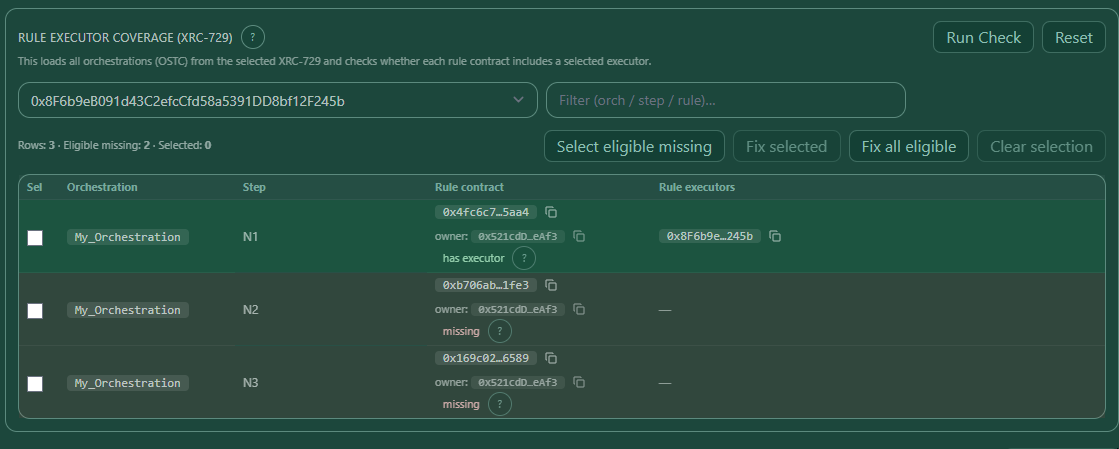 — Green rows for “has executor / owner (implicit)” and red rows for “missing”.
6) Filtering
Use the filter input to reduce the table:
- Orchestration ID
- Step path
- Rule contract address
Filtering does not change the underlying check results — it only changes what is visible.
7) Fixing missing access (owner-only)
If some rows are missing, you can fix them by adding the selected executor to the rule contract.
What counts as “Eligible missing”
A rule contract is counted as eligible only if:
- Status is missing, and
- You are the owner of the rule contract, and
- The selected executor is not the owner (because owner already has implicit rights and we do not add owner as executor)
That means:
- owner (implicit) rows are OK and never eligible.
- missing + not owner rows are missing but not fixable from your wallet.
Buttons
- Select eligible missing
-
Selects all missing rows that are fixable (unique contracts).
-
Fix selected
-
Sends
addExecutor(selectedExecutor)for each selected rule contract. -
Fix all eligible
-
Sends
addExecutor(selectedExecutor)for every eligible missing rule contract. -
Clear selection
- Clears checkbox selection.
Important: Each fix is an on-chain transaction. Large batches can take time and will produce multiple tx hashes.
8) Results and receipts
All tx outcomes appear in the Result stream (below the panel). For each tx you can:
- see whether it was successful
- copy the tx hash
- open the tx in the explorer
Receipts can be inspected in the Receipt section using Show details.
What you see
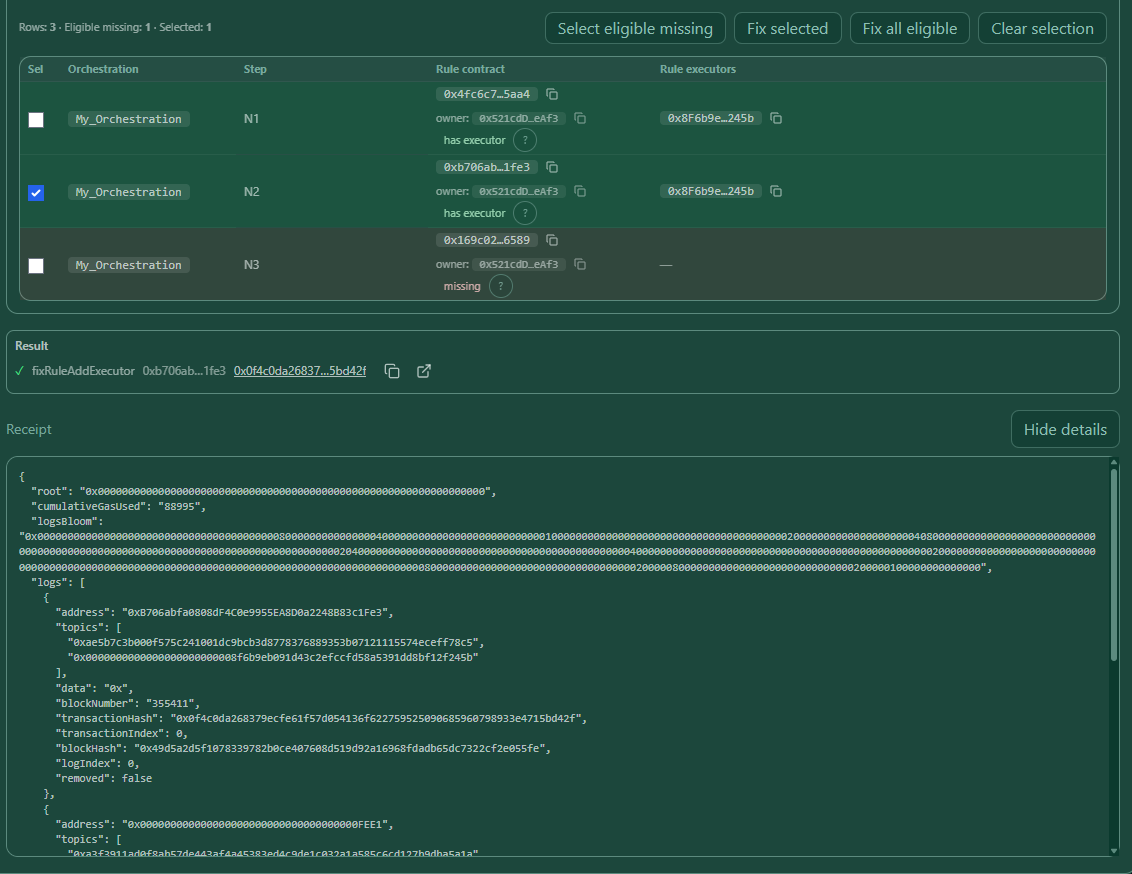 — Result stream + receipt viewer after fixing a rule contract.
9) Troubleshooting
- Nothing happens after “Run Check”
- Verify you loaded a valid XRC-729 contract address.
-
Check RPC connectivity and try again.
-
Rows are red but you cannot fix them
-
If you see not owner, your wallet is not the rule owner. Only the owner can add executors.
-
Selected executor is the owner but not listed in executors[]
- This is expected. The owner always has implicit execution rights.
-
The row should be green with status owner (implicit).
-
Why can any address execute on this contract?
- Check the executor list: if you see Wildcard (*), execution is open.
- The wildcard corresponds to the address
0x0000000000000000000000000000000000000000. - Remove the wildcard executor to restrict execution again.
10) Managing executors on XRC-137 (add / remove)
The same page (OPS → Manage Execution) also lets you manage the executor list on an XRC-137 rule contract directly.
Add an executor
- Load the XRC-137 contract address in Step 2.
- In the Executors section, enter the executor address.
- Click Add.
- Confirm the transaction in your wallet.
What you see
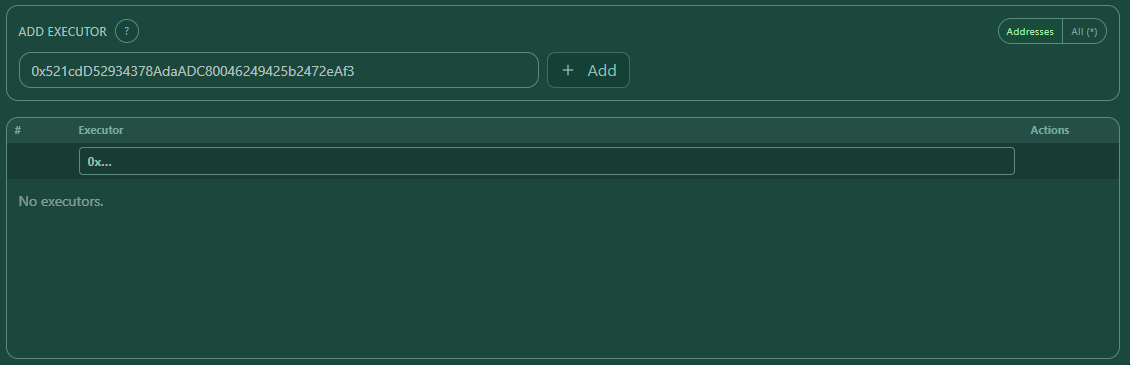 — XRC-137 loaded; executor input + Add button in the Executors section.
If you are the contract owner, the address will appear in the executor list after the tx is confirmed.
What you see
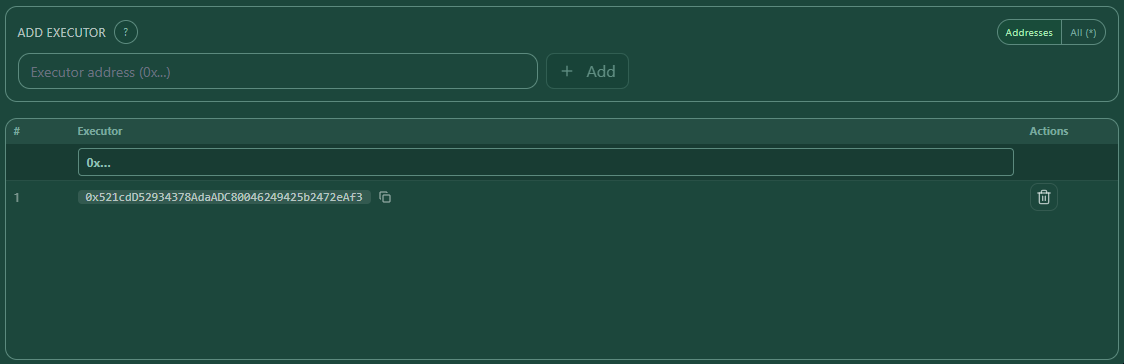 — Updated executor list on XRC-137 after adding (address appears as a list row).
Add wildcard executor (All *)
Instead of adding a specific executor address, you can enable Wildcard execution:
- Load the XRC-137 (or XRC-729) contract address.
- In ADD EXECUTOR, switch to All (*) mode.
- Click Add Wildcard (*).
- Confirm the transaction in your wallet.
This adds the wildcard executor address:
0x0000000000000000000000000000000000000000
What you see
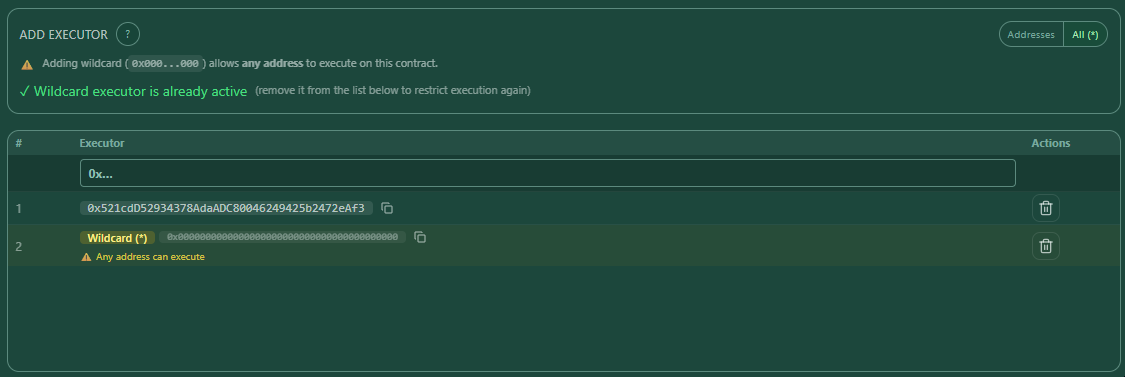 — Updated executor list on XRC-137 after adding wildcard.
Important: With the wildcard enabled, any address can execute on this contract until you remove it.
Remove an executor
- Load the XRC-137 contract address.
- Find the executor in the list.
- Click the Remove (trash) action.
- Confirm the transaction in your wallet.
What you see
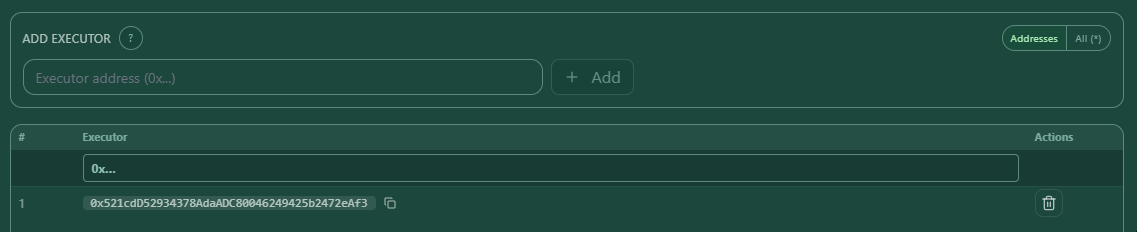 — Executor list row on XRC-137 with Remove (trash) action.
If the executor is shown as Wildcard (*), removing it will restrict execution again to the remaining executor addresses.
Owner-only
Adding and removing executors is typically owner-only.
- If your connected wallet is not the owner, the UI will not let you submit add/remove transactions.
- You can still use the coverage check (XRC-729) to see what is missing — but you can only fix contracts where you are owner.
What you see
 — Not-owner state: add/remove actions are disabled (owner-only).
11) End-to-end flow: add a new executor across XRC-729 + all referenced XRC-137 rules
This is the common “real world” workflow:
You own an XRC-729 process (OSTC orchestration) that references many XRC-137 rule contracts. You want to onboard a new executor and make sure it can execute the entire process end-to-end.
Step 1 — Add the executor to XRC-729
- Go to OPS → Manage Execution and load your XRC-729.
- In the executor list section, add the new executor address.
This ensures the executor is recognized at the XRC-729 level (and shows up in the executor dropdown).
Tip: If you intentionally want to open execution temporarily, you can enable Wildcard (All *) instead — but this allows any address to execute.
What you see
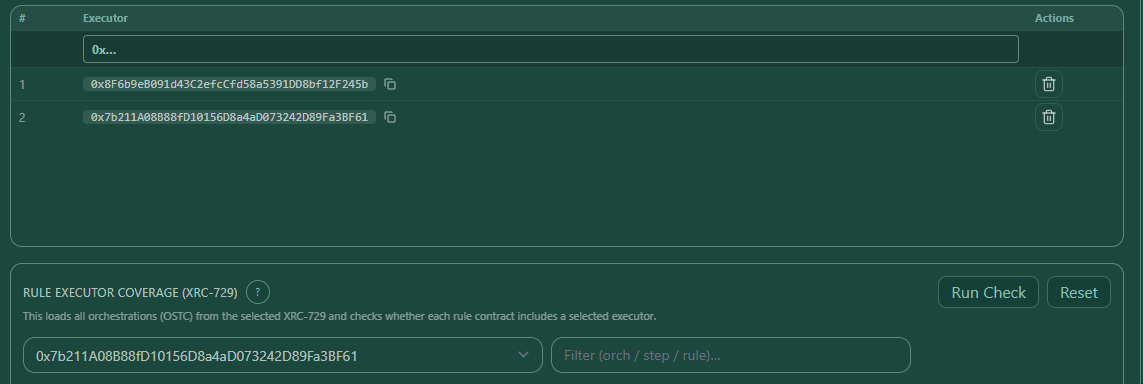 — XRC-729 loaded; new executor is added in the Executors section so it becomes selectable for coverage.
Step 2 — Run coverage for the new executor
- In RULE EXECUTOR COVERAGE (XRC-729), click Run Check.
- Select the new executor from the dropdown.
Now you see where the executor already has access and where it still fails.
What you see
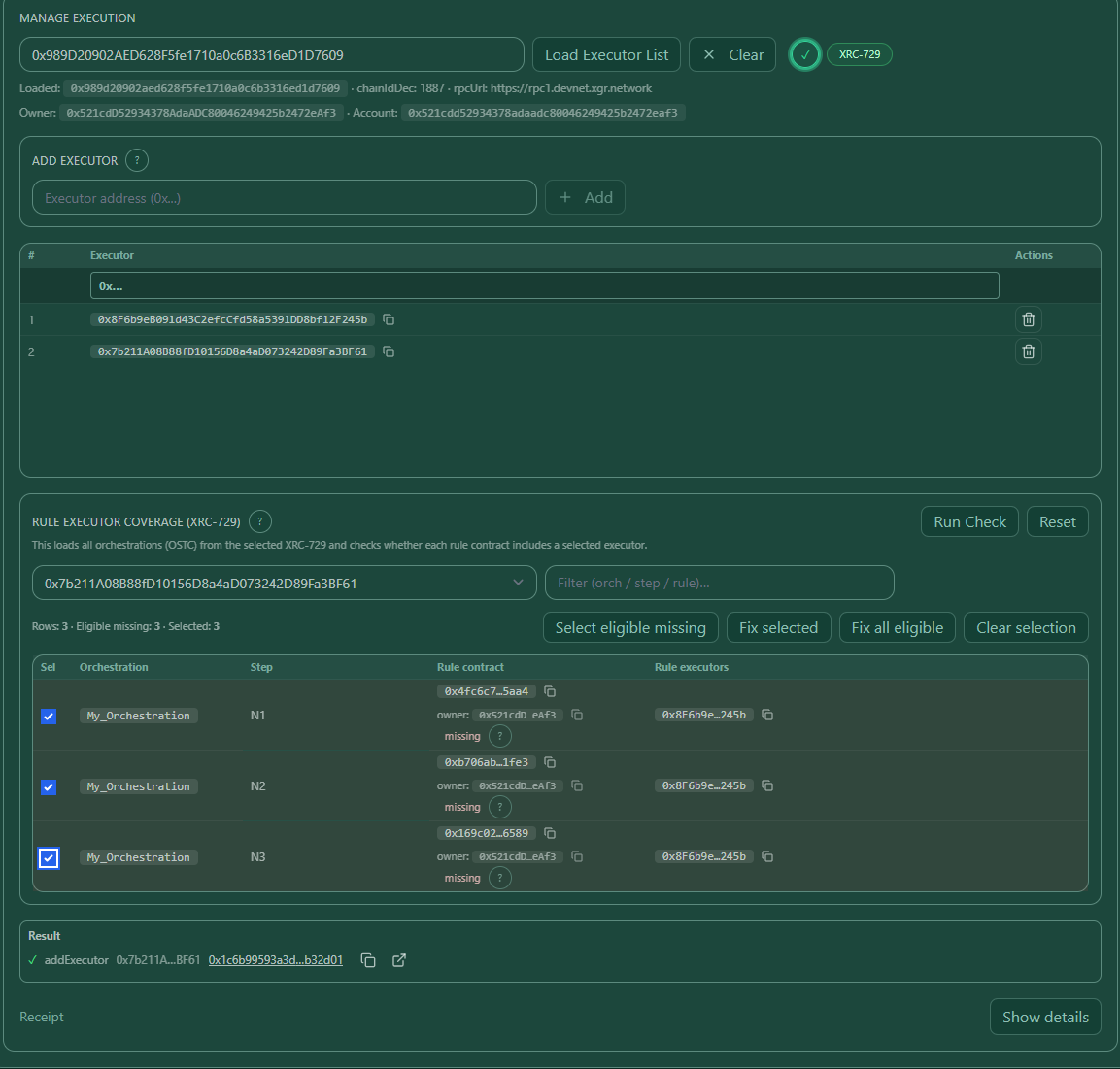 — Coverage panel after Run Check with the new executor selected in the dropdown.
Step 3 — Understand what “missing” means
A very important detail:
- Adding an executor to XRC-729 does not automatically add it to every referenced rule contract.
- Each referenced XRC-137 (rule) contract must allow the executor too.
So “missing” rows mean: the new executor still cannot execute those specific rules.
What you see
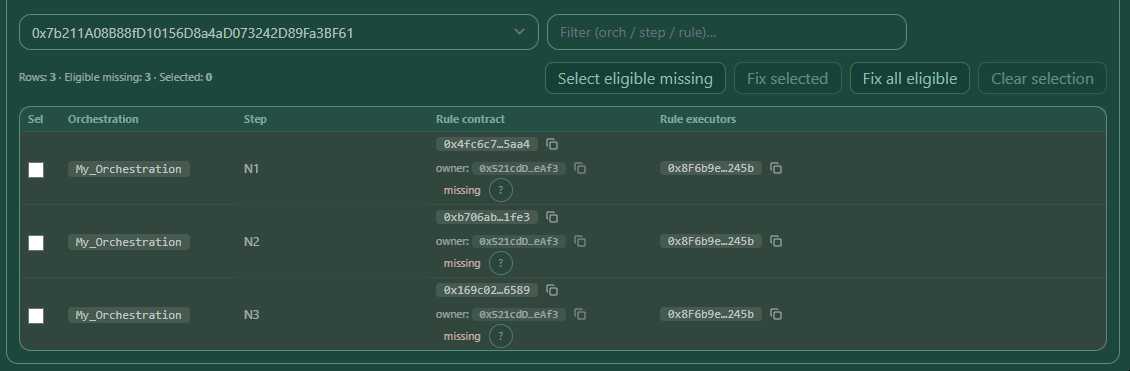 — Coverage table showing red missing rows (executor not present and not owner).
Step 4 — Fix missing rules (only where you are owner)
- Click Select eligible missing to select all rules you can actually fix.
- Click Fix selected (or Fix all eligible) to batch-add the executor to those rule contracts.
- Confirm the transactions in your wallet.
Each fix sends addExecutor(newExecutor) on an individual rule contract (commonly XRC-137).
What you see
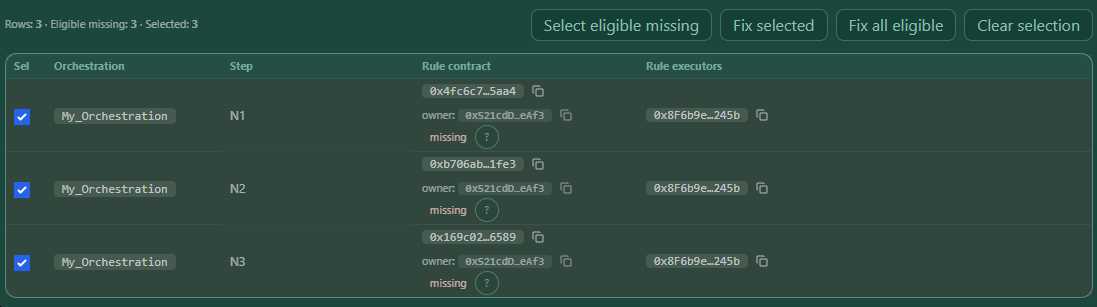 — Select eligible missing then Fix selected (batch adds across the missing XRC-137 rules you own).
Step 5 — Re-run the check to confirm
After the transactions confirm:
- Click Run Check again.
- Select the same executor.
The goal is: all rows that belong to rules you own should now be green (has executor or owner (implicit)).
What you see
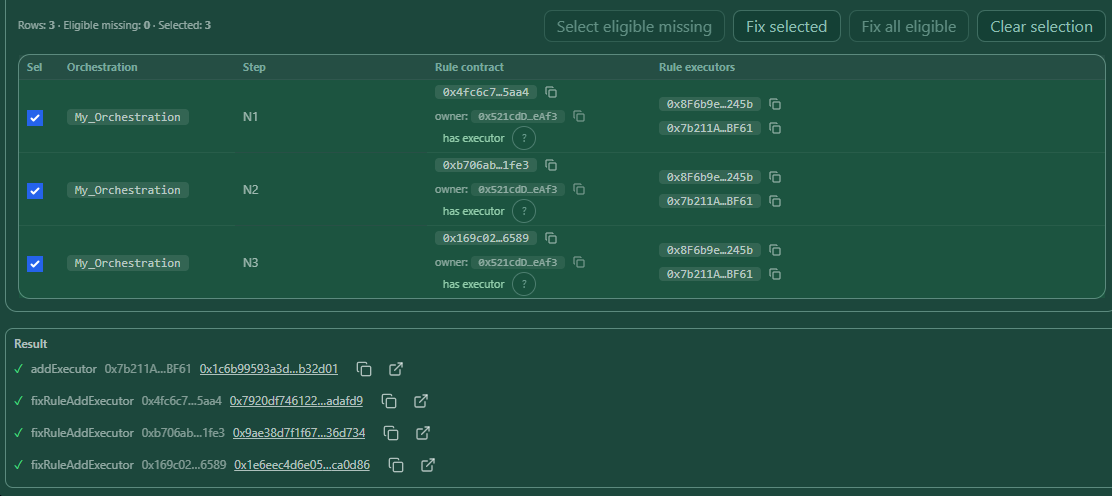 — After fixing and re-running coverage: rows turn green (has executor / owner (implicit)).
Step 6 — Handle “missing + not owner”
If some rows remain red and show not owner, you have two options:
- Switch to the wallet that owns those rule contracts, then run Fix again.
- Or coordinate with the respective owners to add the executor on their contracts.